Nice ish transitions from a photo thumbnail to a full screen view.

The method of animating the appearance of views in Cocoa is good and simple I think. You can use an inbuilt one, which just works, or you can start an animation block and effectively program in key frames. To make it such that you can click a button containing an image and a view scales out from that image I implemented this:

--SNIP

When the photo button is clicked it will either present the user with a dialogue to choose a photo if the view is in edit mode or instantiate a UIImageView over the button and zoom it out to full screen. Seeing as I opted to display the image in the main window of the app it is above everything else including the navigation bar. For that reason we don’t want anybody to manipulate any other aspect of the system so we turn of user interaction. If we did not do this they could hit the back button and load another recipe. The view we have loaded would remain on top until the user quit the app. At the moment as soon as the animation completes the view is removed. The next stage is prettify it by doing the following:

– Add in a view behind the image view that is dk grey and opaque. This will fill the whole screen after the zoom thus ‘greying’ out the other components.
– Load in a button over the top with user interaction enabled. A click will remove the UIWindow subview and restore user interaction to the recipe view and the nav bar.

I did have this wrapped up in a view controller but it’s a pain to push a view from a controller and maintain all the ‘control’ you want perversely enough. It could just be me but I could not get the frame of a view inside my custom controller to render in the right place. To make the code that presents and animates the view as simple as possible I suspect I will hand code a UIView (without a controller) that can be used anywhere. Now if only I could figure out the location and size of the button that was clicked programatically it would be nice and shiny and generic.

UPDATE: New version of code

- (IBAction)photoButton {
	// If editing display image picker.
	if(self.editing) {
		UIImagePickerController *imagePicker = [[UIImagePickerController alloc] init];
		imagePicker.allowsEditing = TRUE;
		imagePicker.delegate = self;
		[self presentModalViewController:imagePicker animated:YES];
		[imagePicker release];
	} else {
		// Stop people being able to navigation away or change the UI before we manipulate the view.
		self.navigationController.navigationBar.userInteractionEnabled=NO;
		self.view.userInteractionEnabled=NO;
		// Initialise UIImageView over the top of the existing button.  
		// Be nice to discover this programatically.
		photoView = [[UIImageView alloc] initWithFrame:CGRectMake(8, 72, 72, 72)];
		// Assign photo
		[photoView setImage:recipe.photo];
		// Maintain aspect
		[photoView setContentMode:UIViewContentModeScaleAspectFit];
		// We really! want this window over the top of everything, inc. the nav bar.
		UIWindow *mainWindow = [[UIApplication sharedApplication] keyWindow];
		// Add the subview
		[mainWindow addSubview:photoView];
		// Name our animation block
		[UIView beginAnimations:@"Expand" context:nil];
		// Set the duration
		[UIView setAnimationDuration:0.3f];
		// Tell it where we want to end up, e.g. full frame and zoomed as such
		[photoView setFrame:CGRectMake(0, 0, 320, 480)];
		photoView.transform = CGAffineTransformMakeScale(1, 1);
		// Make sure we configure something to remove the view.
		[UIView setAnimationDelegate:self];
		[UIView setAnimationDidStopSelector:@selector(animationDidStop:finished:context:)];
		[UIView commitAnimations];
	}
}

- (void)didViewPhoto:(id)selector {
	// Remove button immediately or it can be clicked twice, which is bad as it means it will be removed twice and thus crash.
	[photoViewButton removeFromSuperview];
	// Animoot the dissappearance.
	[UIView beginAnimations:@"Shrivel" context:nil];
	[UIView setAnimationDuration:0.3f];
	[photoView setFrame:CGRectMake(8, 72, 72, 72)];
	//[photoView setTransform:CGAffineTransformMakeScale(0.1, 0.1)];
	[UIView setAnimationDelegate:self];
	[UIView setAnimationDidStopSelector:@selector(animationDidStop:finished:context:)];
	[UIView commitAnimations];
}

- (void)animationDidStop:(NSString *)animationID finished:(BOOL)finished context:(void *)context {
	// If it's expand we're zooming in and want to show controls.
	// Otherwise we've viewed the photo and want to get back to normal.
	if (animationID == @"Expand") {
		photoViewButton = [[[UIButton alloc] initWithFrame:CGRectMake(0, 0, 320, 480)] autorelease];
		[photoViewButton addTarget:self action:@selector(didViewPhoto:) 
				  forControlEvents:UIControlEventTouchDown];
		[[[UIApplication sharedApplication] keyWindow] addSubview:photoViewButton];
	} else {
		// Remove from main window
		[photoView removeFromSuperview];
		// Re-enable controls.
		self.navigationController.navigationBar.userInteractionEnabled=YES;
		self.view.userInteractionEnabled=YES;
		
	}
}

Enhancements here would be farming it out to it’s own UIView then you just have to animate that sucker and can make it rotate on the screen. Another possibility…. would be to zoom the actual button itself out and back. If you notice the zoom transition has a small glitch at the end due to the removal of the UIImageView and the UIButton behind it, if the UIButton itself was zoomed in and out it would make the whole code a lot simpler, assuming you can. If I fiddle with it later I’ll post it as a new post and update this one accordingly. For now, it’ll do. Font rendering issues next.

Posted in Programming | Tagged , , , | Comments Off on Nice ish transitions from a photo thumbnail to a full screen view.

So so close.

Just two bugs away, probably, from having something working in its entirety. E.g. everything else is additional features rather than core functionality.

Current bugs:

1 – Render of StepTableCell is outside the bounds of the cell for reasons unknown, it’s not self.view or self.contentview issues.
2 – Content of custom table cell does not move when entering edit mode etc. Need to animoot manually!

To-Do:

– Add author information.
– Prettify… my graphics/icons do not look ‘consistent’.
– Ponder utensil code and usefulness.
– Ratings.
– Bluetooth content distribution.
– Web based content distribution.
– Account management to allow for authorship.
– iPad code.
– Preferences code.

There are other things as well but the two ‘bugs’ I find irritating. Another thing is the consistency of the UI design approach. I’m not sure which views are better served by being modal and/or whether final views such as the view to add instructions is better served by adding steps with a + icon in the top right (like the first Category view) or via edit mode and a special table cell (a la some rows in the middle of the main detail view).

Posted in Programming | Tagged , , | Comments Off on So so close.

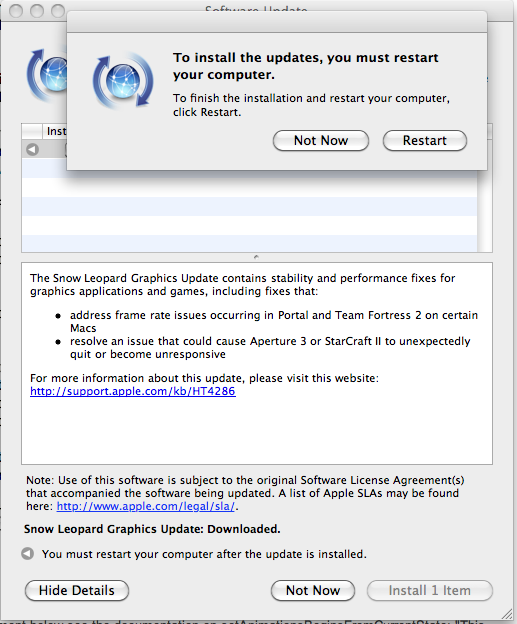
Well these are novel reasons for offering a patch.

I guess there must be a fuckton of starcraft players out there with macs. Hopefully not the same specs or macs though.

Interestingly I have experienced both of the issues this apparently fixes.

Posted in Games | 1 Comment

A few inconsistencies in approach…

As I read through some of the code I’ve written I notice things I’ve done twice, unnecessarily. For example a custom table cell has a property (variable/object in normal language) called category of type Category. The table view controller to which it belongs has a routine called configureCell to update the data in it’s cell. It looks something like:

- (void)configureCell:(CategoryTableCell_iPhone *)cell atIndexPath:(NSIndexPath *)indexPath {
    NSManagedObject *mO = [self.fetchedResultsController objectAtIndexPath:indexPath];
	cell.category = (Category *)mO;
	[cell.name setText:[mO valueForKey:@"name"]];
	[cell.desc setText:[mO valueForKey:@"desc"]];
	[cell.icon setImage:[mO valueForKey:@"icon"]];
	[cell setNeedsDisplay];
}

Which is great, the cell itself holds a copy of the Category object and the configureCell method updates the fields and informs the table that it should refresh. Except…. I’m duplicating work. Inside the custom table cell code is this:

- (void)setCategory:(Category *)newCategory {
	if(category != newCategory)
	{
		[category release];
		category = newCategory;
		UIFont *cat = [UIFont fontWithName:@"Georgia" size:18];
		name.font = cat;
		desc.font = cat;
		name.text = category.name;
		desc.text = category.desc;
		[icon setImage:newCategory.icon];
	}
}

Which isn’t obviously called anywhere…. except when you declare a variable or object in objective-c you define getters and setters for it. This is normally done automagically with, at various points:

@property (nonatomic,retain) Category *category;
@synthesize category;

The synthesize bit is key. Of course what synthesize does is define two routines called getCategory and setCategory. By defining our own above we have overridden the default behaviour. Thus the bulk of my code in configureCell is redundant and should just read:

- (void)configureCell:(CategoryTableCell_iPhone *)cell atIndexPath:(NSIndexPath *)indexPath {
    NSManagedObject *mO = [self.fetchedResultsController objectAtIndexPath:indexPath];
	cell.category = (Category *)mO;
	[cell setNeedsDisplay];
}

It seems that depending on the book I have been reading depends on which methods are used or indeed whether both are implemented. You could do away with the custom setter method and implement it all in configure cell. Choose one way or the other, not both. 🙂 Harmless to be sure but inefficient.

Posted in Programming | Tagged | 2 Comments

A bit more fun with photoshop.

Two little icons…..

Camera Icon


Text Icon

Posted in Art, Drawing | Comments Off on A bit more fun with photoshop.

A small applescript utility.

Knocked this up today as I figure it will prove it’s worth in the future. Drag and drop an image onto it and it will generate the necessary files for the various icons/artwork an iPhone/iPhone4 or iPad application, it should work with PNG, JPG and all the usual formats and also for other apps if you have them installed and they support applescript, e.g. photoshop.

-- Receives files and generates the necessary Icons with the correct names/sizes
-- for iPhone/iPhone4 and iPad applications

on open the_images
	repeat with thine_image in the_images
		try
			generate_icons(thine_image)
		end try
	end repeat
end open

(*
set this_image to choose file of type {"JPG", "PNG"}
generate_icons(this_image)
*)

to generate_icons(this_image)
	set oldDelim to AppleScript's text item delimiters
	set AppleScript's text item delimiters to {"."}
	
	set cur_name to name of (info for this_image) as string
	set basename to first text item of cur_name
	set extension to "." & last text item of cur_name
	
	try
		tell application "Image Events"
			launch
			-- Open image and resize to 72
			set imageptr to open this_image
			scale imageptr to size 72
			set the props_rec to the properties of imageptr
			set savePath to (path of location of props_rec) & "Icon-72.png"
			save imageptr as PNG in file savePath with icon
		end tell
		
		tell application "Image Events"
			-- Open image and resize to 50
			set imageptr to open this_image
			scale imageptr to size 50
			set the props_rec to the properties of imageptr
			set savePath to (path of location of props_rec) & "Icon-Small-50.png"
			save imageptr as PNG in file savePath with icon
		end tell
		
		tell application "Image Events"
			-- Open image and resize to 29
			set imageptr to open this_image
			scale imageptr to size 29
			set the props_rec to the properties of imageptr
			set savePath to (path of location of props_rec) & "Icon-Small.png"
			save imageptr as PNG in file savePath with icon
		end tell
		
		tell application "Image Events"
			-- Open image and resize to 58
			set imageptr to open this_image
			scale imageptr to size 58
			set the props_rec to the properties of imageptr
			set savePath to (path of location of props_rec) & "Icon-Small@2x.png"
			save imageptr as PNG in file savePath with icon
		end tell
		
		tell application "Image Events"
			-- Open image and resize to 57
			set imageptr to open this_image
			scale imageptr to size 57
			set the props_rec to the properties of imageptr
			set savePath to (path of location of props_rec) & "Icon.png"
			save imageptr as PNG in file savePath with icon
		end tell
		
		tell application "Image Events"
			-- Open image and resize to 114
			set imageptr to open this_image
			scale imageptr to size 114
			set the props_rec to the properties of imageptr
			set savePath to (path of location of props_rec) & "Icon@2x.png"
			save imageptr as PNG in file savePath with icon
		end tell
		
		tell application "Image Events"
			-- Open image and resize to 512
			set imageptr to open this_image
			scale imageptr to size 512
			set the props_rec to the properties of imageptr
			set savePath to (path of location of props_rec) & "iTunesArtwork"
			save imageptr as PNG in file savePath with icon
		end tell
		
		set AppleScript's text item delimiters to oldDelim
	on error m
		set AppleScript's text item delimiters to oldDelim
		log ("GENERAL ERROR: " & m)
		return false
	end try
end generate_icons

It’s worth noting the following warnings:

– It’s not efficient.
– It’s dumb, it will overwrite stuff.
– If you drop more than one file you’ll probably only get the last one.

This suits my needs, feel free to alter it to produce other stuff.. for example you should spot the basename and extension stuff so savePath could become:

set savePath to (path of location of props_rec) & basename & "-Icon-72" & extension

You could then make the file type match the original with:

set file_format to imageptr's file type

then edit PNG in the save code to become file_format.

Posted in Programming | Tagged , , , | Comments Off on A small applescript utility.

Scientist detects powerful jet from supernova. . .

and decides to announce it as a Doctor Who fanfic rather than a boring paper (via Metafilter):

Doctor Who and the Silver Spiral

Posted in Miscellany | Comments Off on Scientist detects powerful jet from supernova. . .

Playing with photoshop.

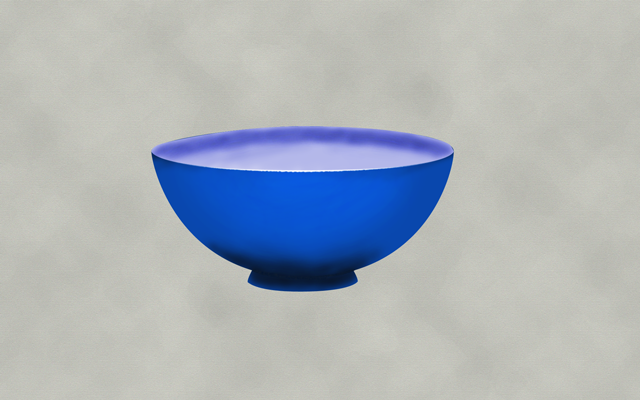
It’s all well and good making apps that work but you realise how dull they look. That’s the key difference between what I have right now and existing apps in the store. Look and Feel. To fix that we need graphics. I’ve been toying around with making my own. Like:

Bowl

Bowl


The background is a canvas kind of paper texture thing from a tutorial I found. Can’t remember where as the image was already on my hard disk. It’ll do. The original is 1920×1200 and it’s getting cropped and shrunk down to 128×128 in the final version anyway.

Posted in Miscellany | Comments Off on Playing with photoshop.

A summary of the day.

Good day.  Silly exc_bad_access bug resolved.  A macro in gdb to print the retainCount (mentioned in a previously posted link) is indeed very handy.  Spamming this through the code was also useful:

NSLog(@"%@ <nameoffunction>",self);   <--- (or with another %@ and adding parameters)

where nameoffunction and the code itself was in things like dealloc, viewWillAppear, viewDidLoad etc.  Thus when it crashed and I could see the memory address as it would be somewhere in the debug console, this along with breakpoints at the aforementioned retainCount macro (or just typing print (int)[object retainCount] ) helped greatly.

Also interesting how sometimes the retain count is not what I thought it should be.  For example a custom table cell is deallocated.  This table cell was created the normal way with dequeueReusableCellWithIdentifier and then had a property set to an object.  So something like:

CustomTableCell *cell = [self.tableView dequeueReusableCellWithIdentifier:@"CustomTableCell"]; cell.anObject = (AnObject *)newObject;

Where newObject was obtained from Core Data with the fetchedResultsController returning a MSManagedObject. In this case you just cast it to the type of object you want, as above. You see I would have thought that my newObject/anObject had a retainCount of 2 so when it’s deallocating the custom cell having deallocated the tableView it was in I should do this:

-(void)dealloc {
  [anObject release];
  [super release];
}

however checking the retain count for the object showed it to already be 0 at that point. The retain count never went above 1, e.g. the initial creation of it inside the table view. Once the superfluous release was commented out the problem went away and there are still no memory links, so it’s definitely not a case of fixing a problem by creating another.

On the opposite side of the coin if I create a view it’s retain count is 1. If I assign that view to a view controller I would expect it to be 2. Commonly once it’s assigned you can release it to return the retainCount to 1. However it isn’t the case. When the object is pushed to a controller the retain count went up to 5 and then dropped to 4 when release later on. Something like (pseudo code ish as I’m sans mac right now):

NewViewController *newView = [[NewViewController alloc] initWithNibName:@"NewView"];
newView.anObject = (AnObject *)newObject;
[self.navigationController pushNewViewController:newView animated:YES];

I assume the retain count for the view increases as things are assigned to it’s member properties.

Anyway the app at this stage is now, to the best of my knowledge, bug free. That leaves me open to implement the final view needed; and also the most bitchy complicated dynamic one.

On another note I’m a complete Dragon Age whore. I am intrigued by the warning on the just released golem DLC which essentially says “This is fucking hard”. I hope so as the rest of it, although fun, has been piss easy.

Posted in Games, Programming | Tagged , , , , | Comments Off on A summary of the day.

I squished a bug.

Two days chasing down a bug and the first thing to enter my mind is “I squished a bug”. Yeah I own the album and the song was stuck in my head. So……

“I Squished a Bug” an ode to GDB, sung to the tune of “I Kissed a Girl” by Katy Perry

This was never the way I planned,
not my intention.
I got so brave,
drink in hand.
Lost my debugger
Its not what, I’m used to.
Just wanna try you on.
I’m curi-ous for you,
caught my attention.

I squished a bug and I liked it,
the trace of it’s memory was cryptic.
I squished a bug just to fry it,
I hope the maintainer don’t fight it.
It felt so wrong,
it felt so right.
Don’t mean it’s released tonight.
I squished a bug and I liked it.
(I liked it)

No, I dont even know your frame,
it doesn’t matter.
Your my initial save,
just out of alpha.
It’s not what good code does.
Not how it should behave.
My head gets, so confused.
Hard to assay.

I squished a bug and I liked it,
the trace of it’s memory was cryptic.
I squished a bug just to fry it,
I hope the maintainer don’t fight it.
It felt so wrong,
it felt so right.
Don’t mean it’s released tonight.
I squished a bug and I liked it.
(I liked it)

You are so hackable.
Soft shell, bad bits, so flipable
Hard to resist,
so stackable.
Too good to deny it.
Ain’t no big deal,
it’s innocent.

I squished a bug and I liked it,
the trace of it’s memory was cryptic.
I squished a bug just to fry it,
I hope the maintainer don’t fight it.
It felt so wrong,
it felt so right.
Don’t mean it’s released tonight.
I squished a bug and I liked it.
(I liked it)

Posted in Music, Programming | Tagged , , , , , , , , | Comments Off on I squished a bug.